Move to Formul
Move a supported Stocksmith/CraftyBase current-state snapshot into Formul with a supervising operator and check its quantities, costs, units, and recipes before receiving or producing against the imported stock.
Before You Start
Section titled “Before You Start”- Use an Owner or Admin account in a workspace with write access.
- Keep untouched source exports and agree on a cutover time. Record transactions after that time separately so you do not count them in both systems.
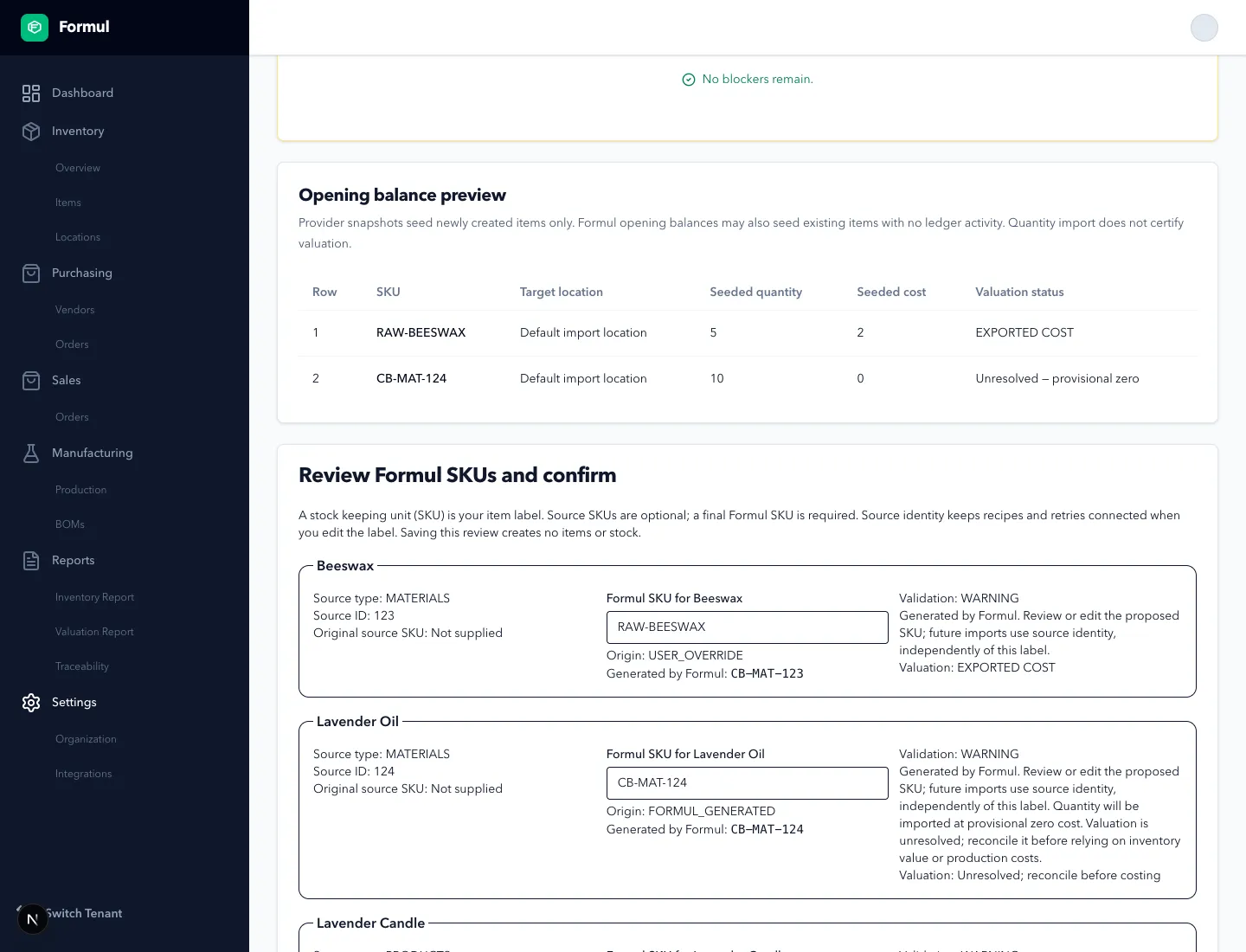
- Keep available provider IDs stable. A source-provided stock keeping unit (SKU), your item code, is optional. A final Formul SKU is required, and Formul can propose one for you to review and edit. For example, a material with source ID 123 receives CB-MAT-123. Components, products and variations use CB-CMP, CB-PRD and CB-VAR. Without a source ID, the proposal has a short suffix. Names alone never merge items.
- Reuse the same Source account profile for later exports from the same account. The default profile is created automatically. Use Another source account label → Add source profile only for a separate account; no provider account ID or Shopify connection is needed.
- Check opening value with your bookkeeper. Missing cost does not block the item or quantity: Formul shows Unresolved instead of a usable inventory value until you reconcile it. An exported zero is recorded separately. Products use current recipe material cost only if you select material-cost snapshot policy; this is not historical finished-goods valuation. Supply a valuation_override column in workspace currency when you have an agreed value.
- Use consistent tracking units. Formul preserves supported unit labels but does not convert a gram recipe into kilograms or convert purchasing units for you.
- Limit each upload to 20 files, 10 MB per file, and 40 MB total. Each CSV may have at most 50,000 data rows. Use representative exports to validate larger migrations with support before cutover.
-
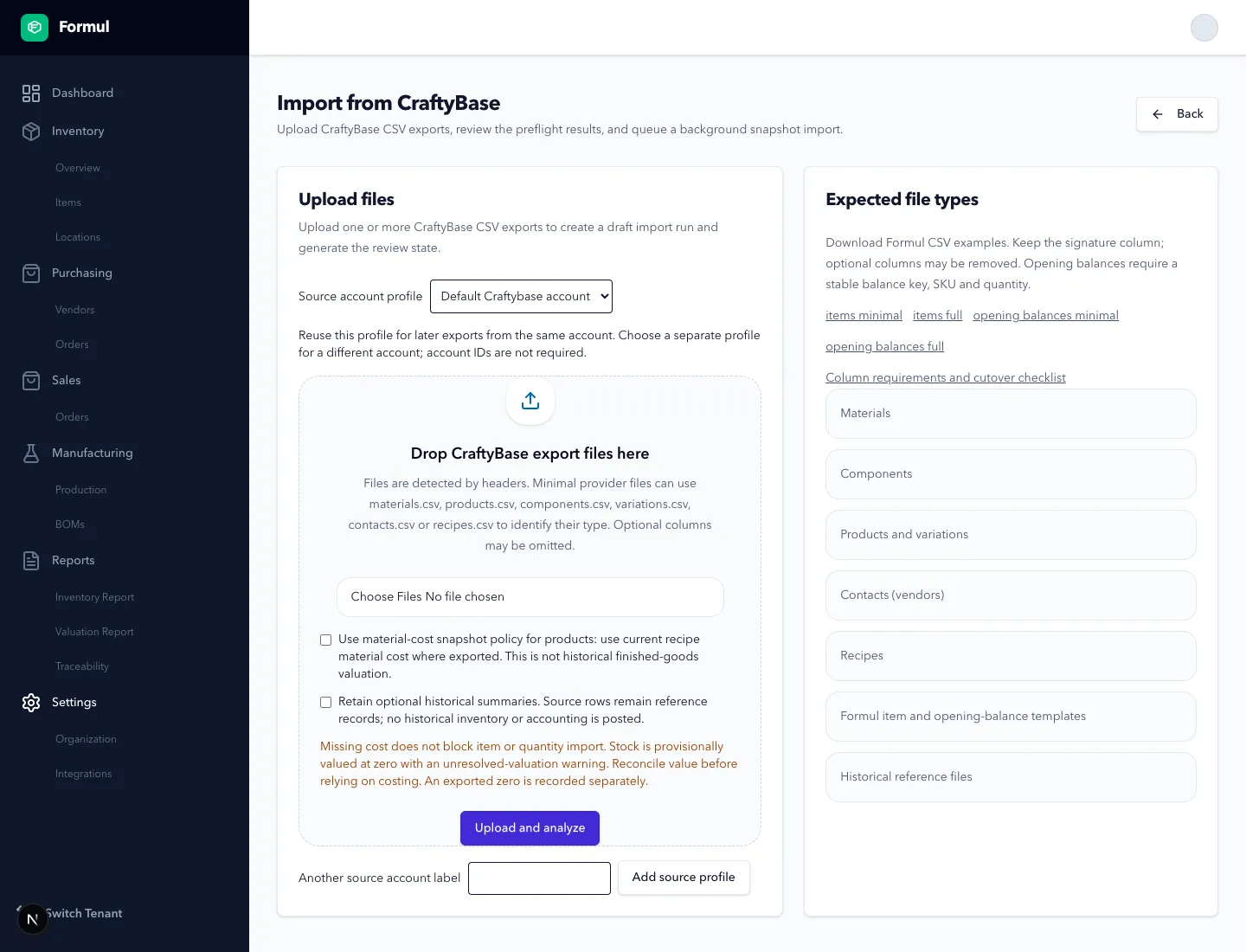
Open Settings → Integrations, choose Open CraftyBase workspace, then Open import flow. Choose the matching source account profile, choose the supported CSV exports together and select Upload and analyze. Optional columns may be absent or blank. For a minimal provider file, use its supported name, such as materials.csv or products.csv. Choose the optional valuation policy and historical-summary retention only if you want them.
For your own spreadsheets, download items minimal/full, opening balances minimal/full, and Column requirements and cutover checklist. Keep Formul Item Type on item files. Balance files require Opening Balance Key, SKU, and Quantity; cost and location are optional. Use a stable key on reruns. With a minimal item file, first import the items, obtain their generated SKUs from reconciliation, then use those SKUs in the balance file.
-
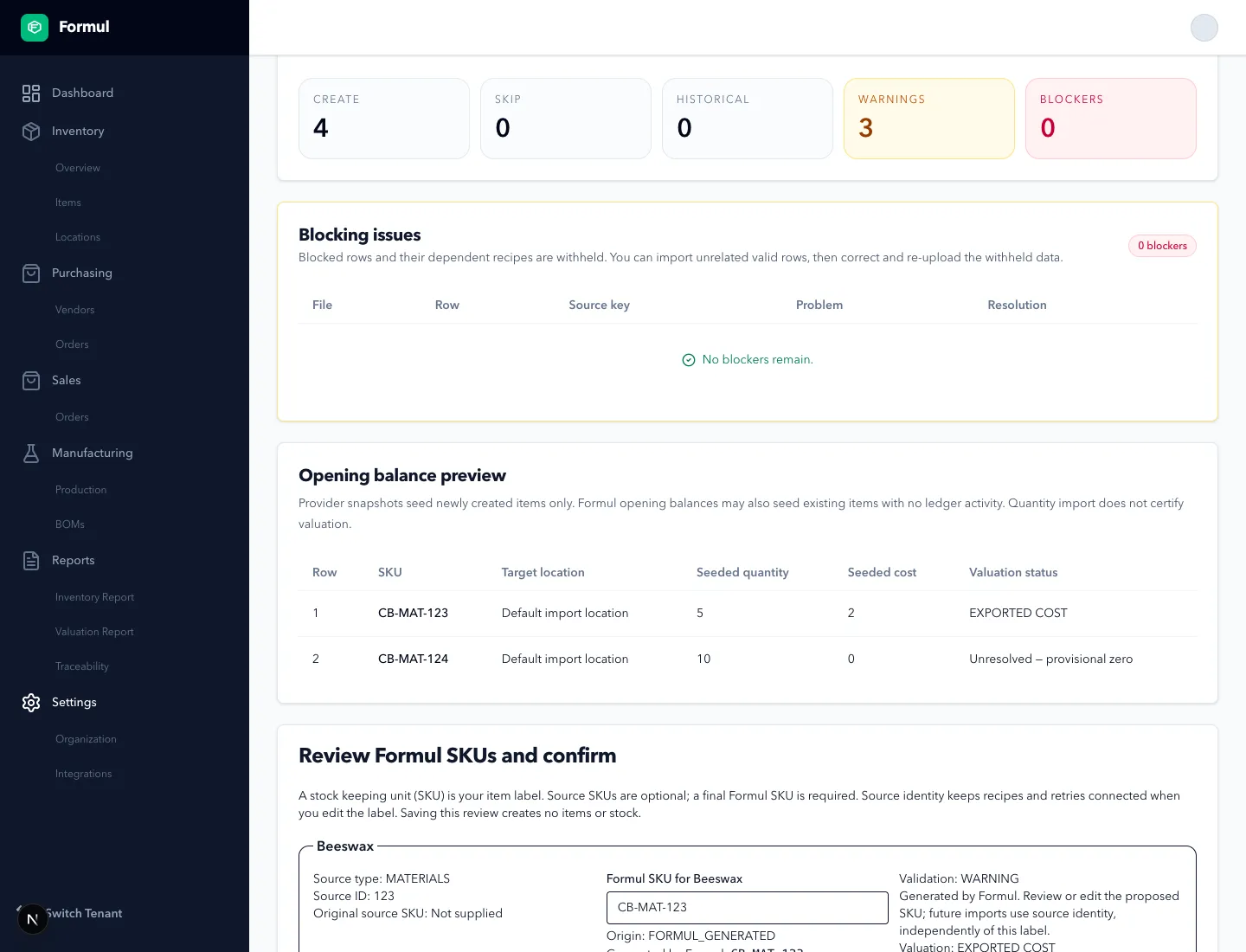
Review Detected files, Warnings, Blocking issues, and Opening balance preview. Analysis creates no operational stock. Check every predicted skip as well as every create: an already mapped source item keeps its current stock and is not reseeded, even if its Formul SKU changed. A matching code alone does not adopt an existing item. Compare Valuation status with quantity: imported quantity may still have unresolved value. Invalid quantities, conflicting identities/units and unresolved ingredients withhold the affected rows or entire recipe. Other valid rows can proceed. Missing contacts, descriptions, BIN fields or optional cost do not stop entity creation.
-
In Review Formul SKUs and confirm, check each item’s source ID, original source SKU, proposed Formul SKU, warnings and valuation. Generated by Formul identifies a proposed code. Edit either a generated or source-provided code, then select Save SKU review. Your choice survives refresh and Recompute preflight. Recipes keep using the original source references; you do not need to rewrite them with your edited codes.
-
Resolve conflicting codes or withheld source references, or agree with your operator to proceed with the valid portion. Same-name ambiguity requires assisted reconciliation. Select Cancel import to abandon the final review without creating items or stock. On a cancelled run, Recover saved review opens a new review with your saved choices. If the preview is acceptable, select Queue import. You can leave the page and return through Recent runs. The import creates supported items, vendor contacts, recipes, and opening stock; recipe creation alone does not consume materials or produce a batch.
-
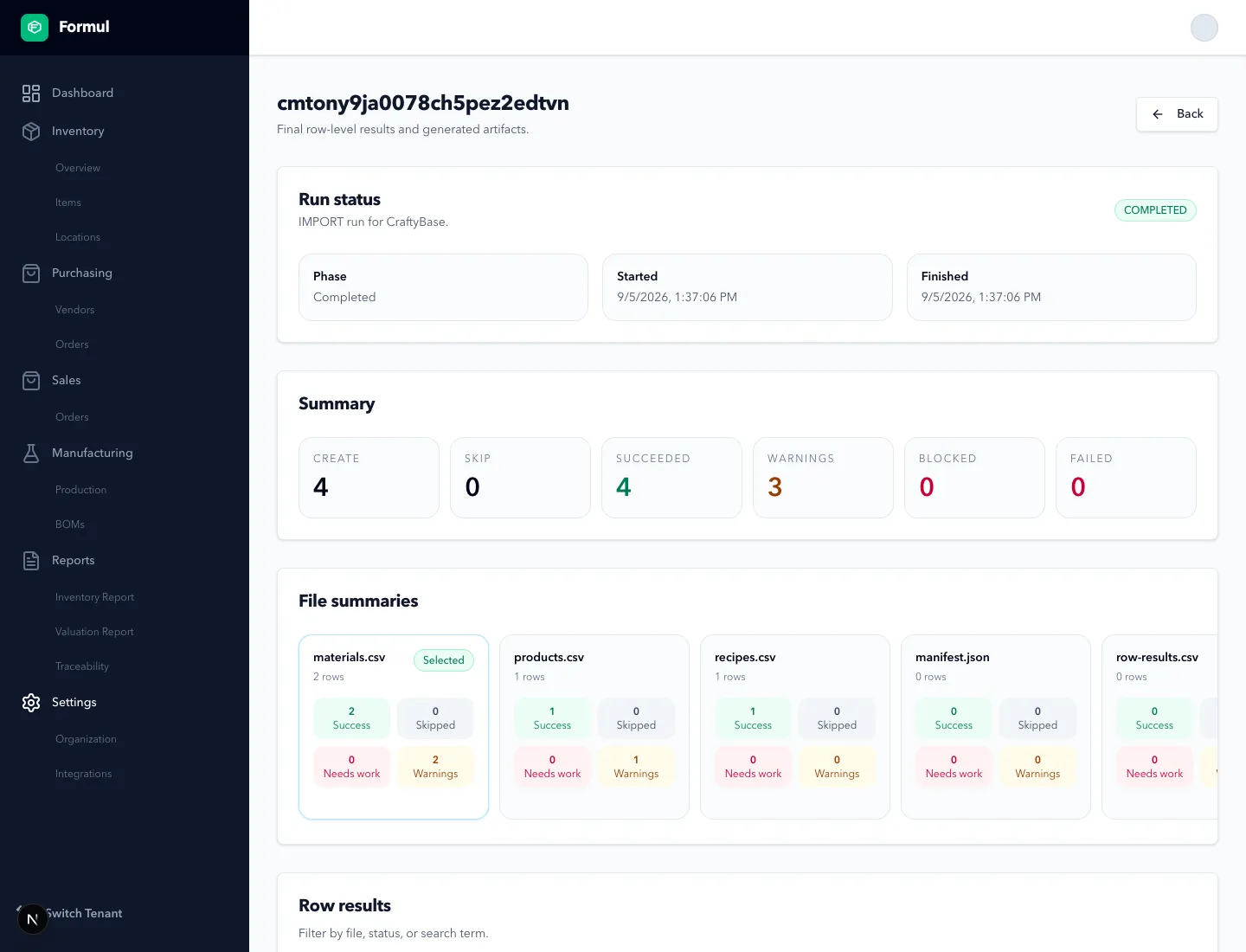
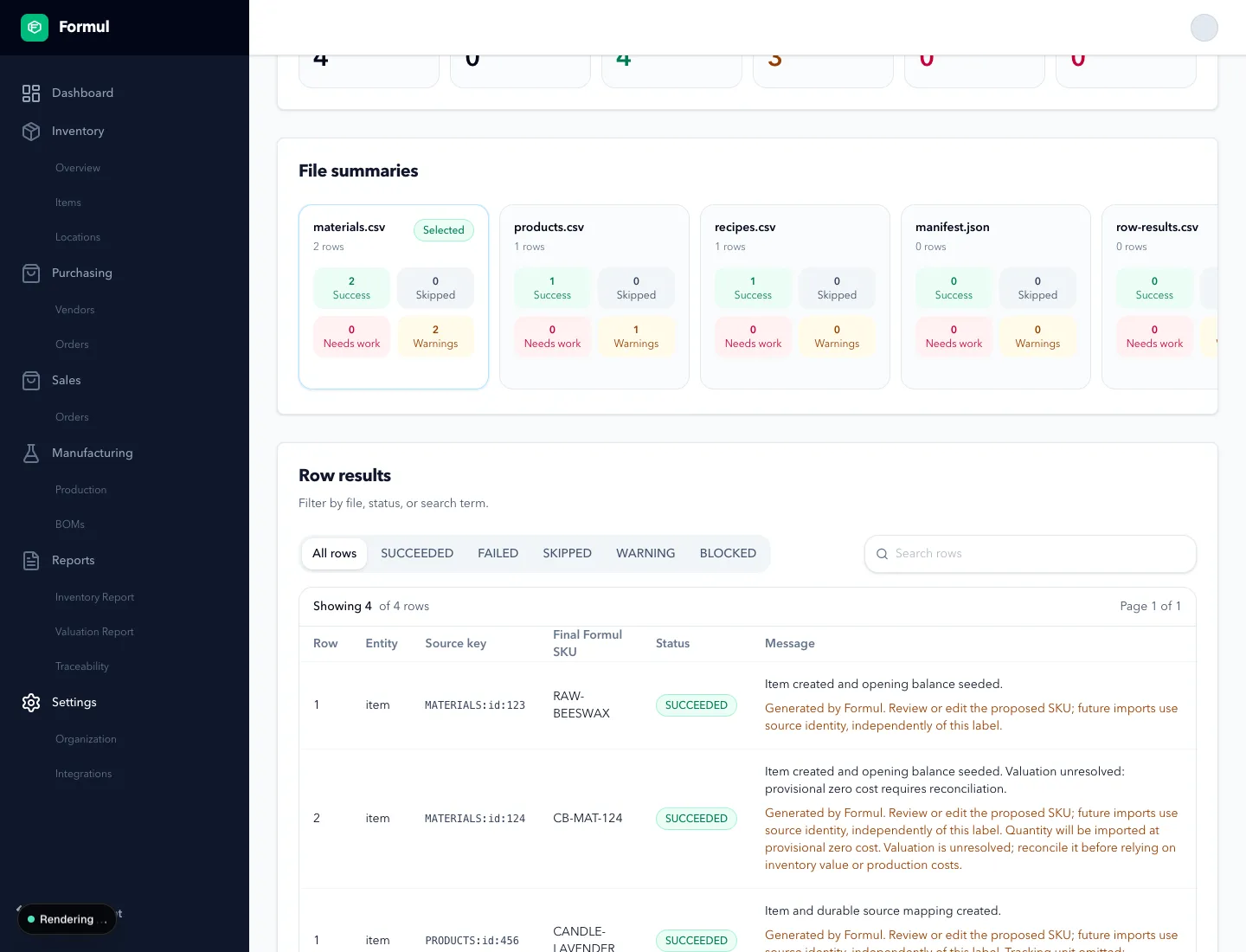
After COMPLETED, use Artifacts to download manifest.json, row-results.csv, blocking-issues.csv, or the report ZIP. The row results include withheld/skipped rows, source identity, original source SKU, generated proposal, your override, final Formul SKU, valuation status, and predicted versus actual opening quantities. The WARNING filter includes successfully imported rows that still need reconciliation. COMPLETED means the selected valid data committed; it does not mean every source row imported or valuation is reconciled. Compare predicted and actual quantities and costs, and investigate skipped or missing rows. Spot-check items and Bills of Materials (BOMs), the recipes used for production, before proceeding.
-
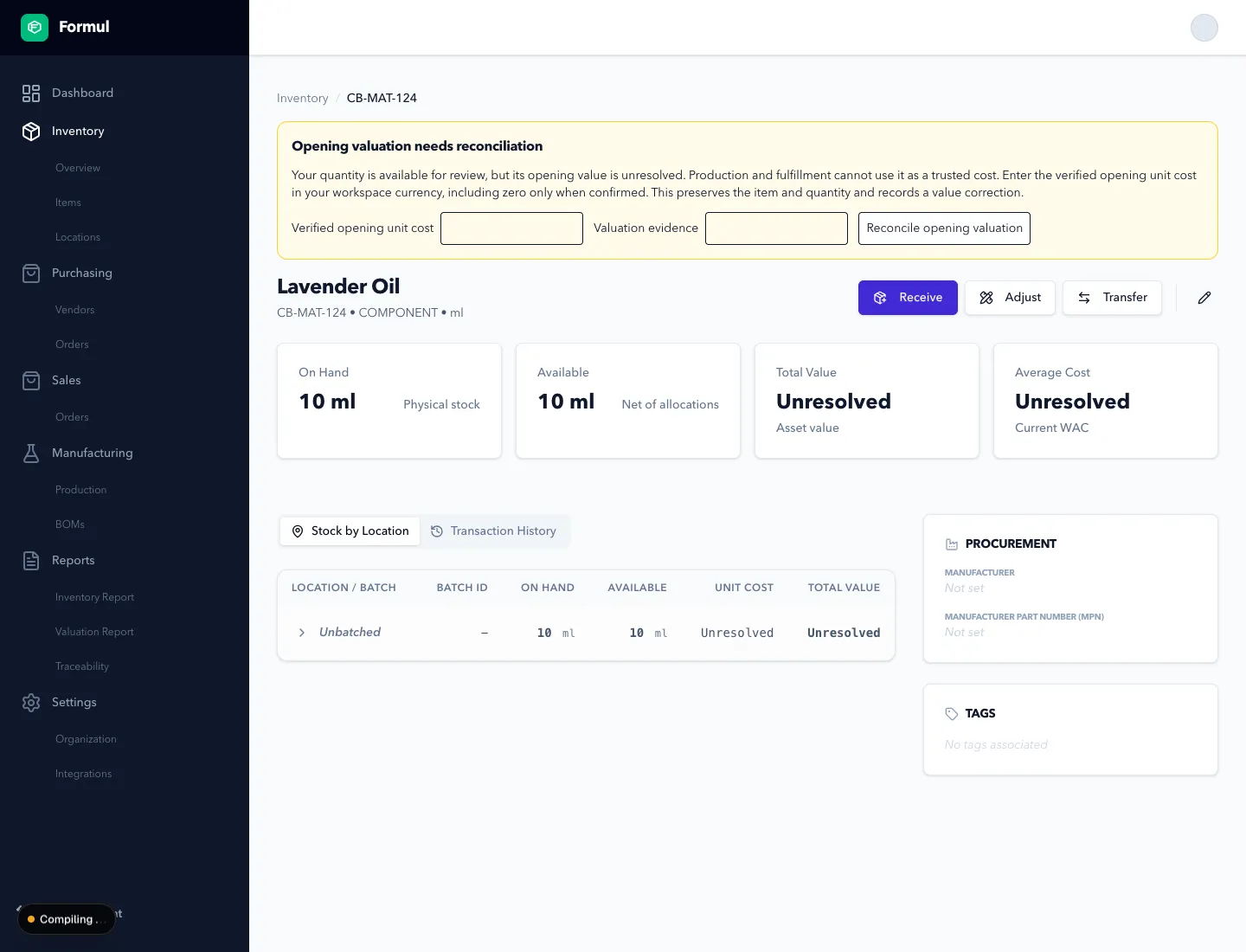
For an item showing Opening valuation needs reconciliation, open its inventory detail page. Enter an agreed unit cost in your workspace currency and an explanation, then select Reconcile opening valuation. Confirmed zero is allowed; a blank cost is not confirmation. Quantity stays unchanged and the same item is retained. Until resolved, Formul shows Unresolved in affected value displays and prevents using that item for trusted production or fulfillment costing.
Expected Result in Formul
Section titled “Expected Result in Formul”Supported new records and quantities match the accepted portion of the reviewed snapshot, and the reports identify their source rows and outcomes. This does not establish historical lot traceability or certify accounting valuation. Confirm those limits before using the imported stock.
If Something Looks Wrong
Section titled “If Something Looks Wrong”-
Upload or analysis failed: correct the reported problem and start a new upload. Keep the original files. Do not edit a generated report as if it were source data.
-
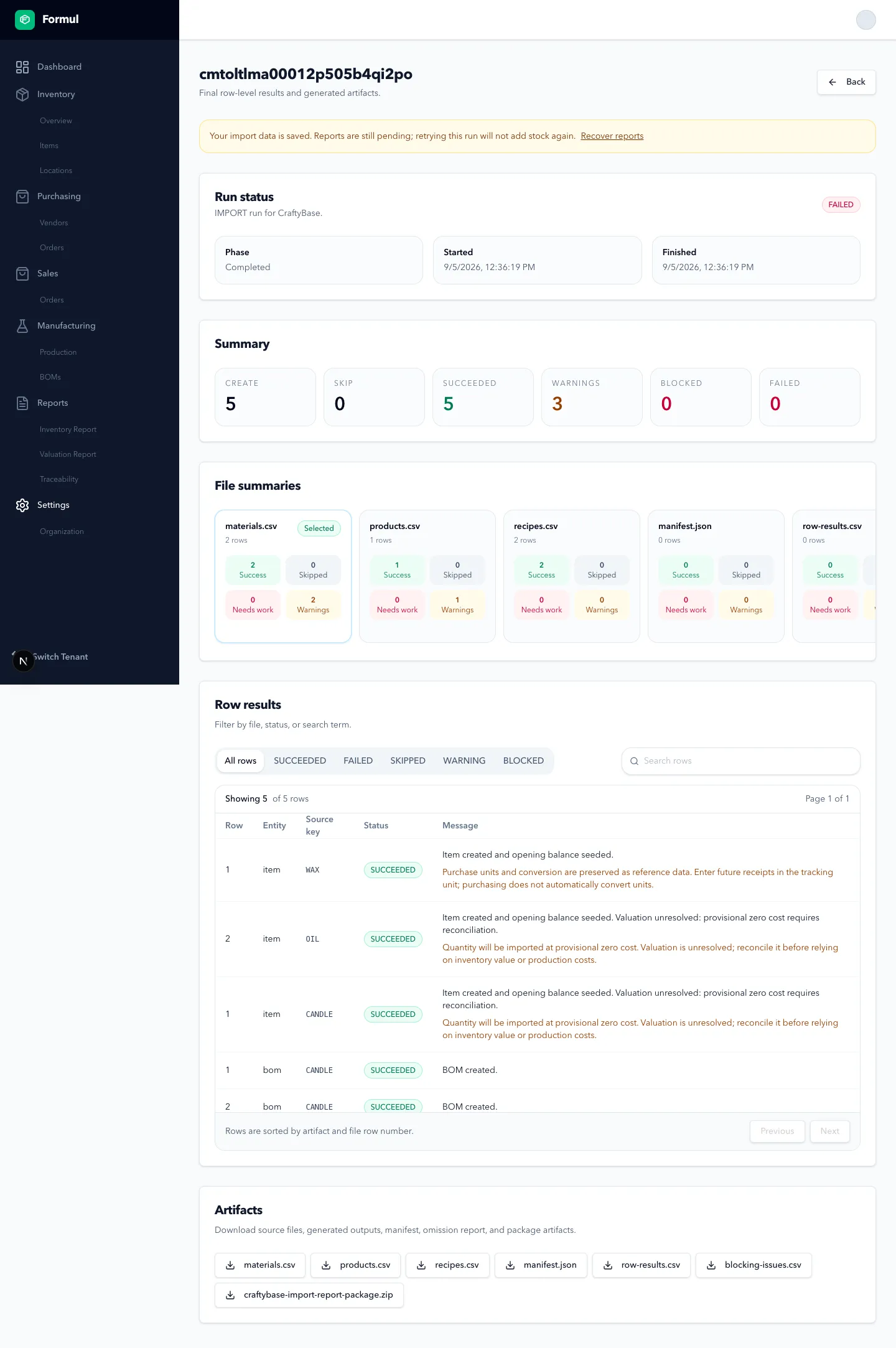
Reports failed after data was saved: the run shows Your import data is saved. Select Recover reports, then Queue import. This retries reports without adding stock again. Do not submit another opening snapshot to repair a report.
-
Cancel is unavailable: operational data has already been saved, or the run is terminal. Cancellation does not undo stock. Stop using affected records and work with support on a reconciled correction or restore; do not delete related history.
-
The source later supplies a different SKU: Formul identifies the mapped item and keeps your current code. Review the source code as reconciliation information or explicitly approve a change; importing it does not duplicate the item.
-
The same file was imported before: Formul warns about reuse. The warning is not a blanket block, and a rerun is not a way to replace existing stock. Review skips and identities before queueing anything.
-
A run remains queued or costs do not reconcile: pause cutover and contact support with the run shown in Formul. Never send credentials or authentication files.
Next Step
Section titled “Next Step”Review Items and Stock Reports. Establish future lot tracking, receive fresh materials, then verify one production batch’s consumption, output, cost, and trace before normal operations. Older production without an exact batch link shows a warning and requires source record verification. If you also use Shopify, arrange a separately authorized cutover with your operator. Generated or edited migration codes do not automatically create Shopify links; matching suggestions require explicit confirmation. Keep existing reservations intact.