Sales Orders
Capture customer demand and reserve stock before shipment.
Before You Start
Section titled “Before You Start”- Sellable items exist.
- Sufficient stock is available for allocation.
-
Navigate to Sales > Orders.
-
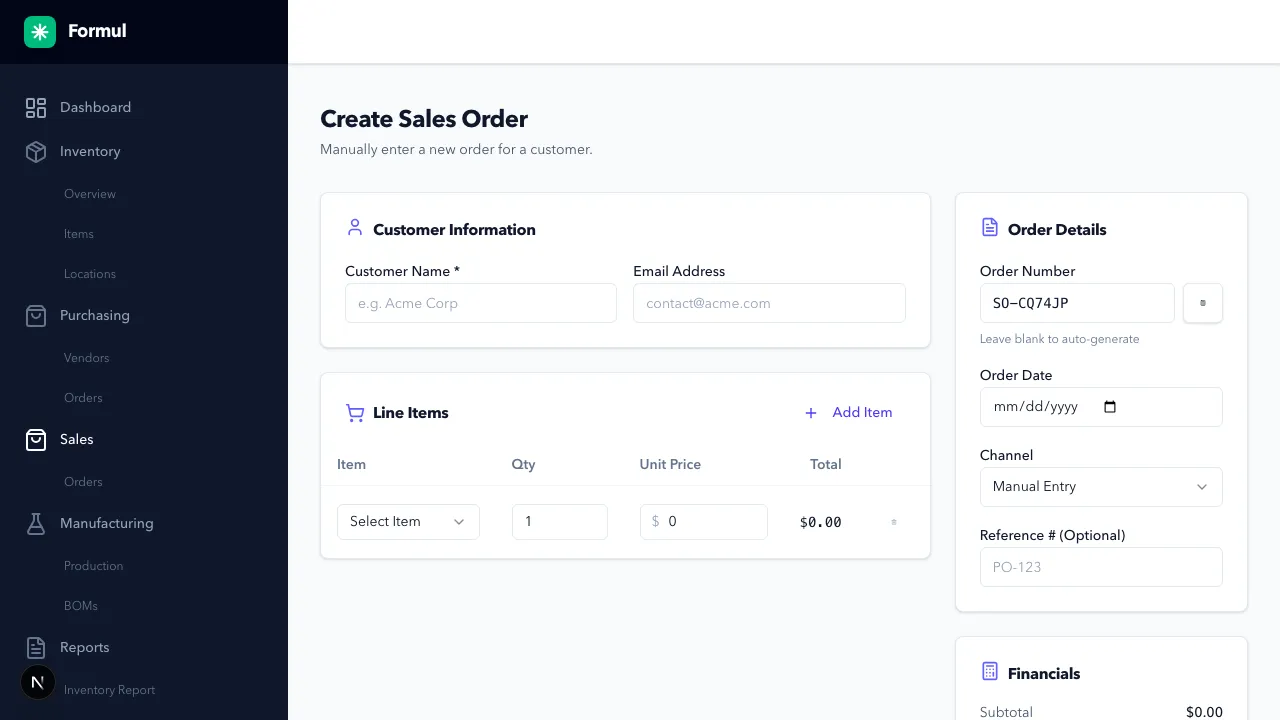
Click Create Sales Order.
-
Enter customer and order header fields.
-
Add order lines with item, quantity, and price.
-
Save the order in
CREATEDstatus. -
Open the order and click Allocate Inventory.
-
Confirm location and allocation quantities.
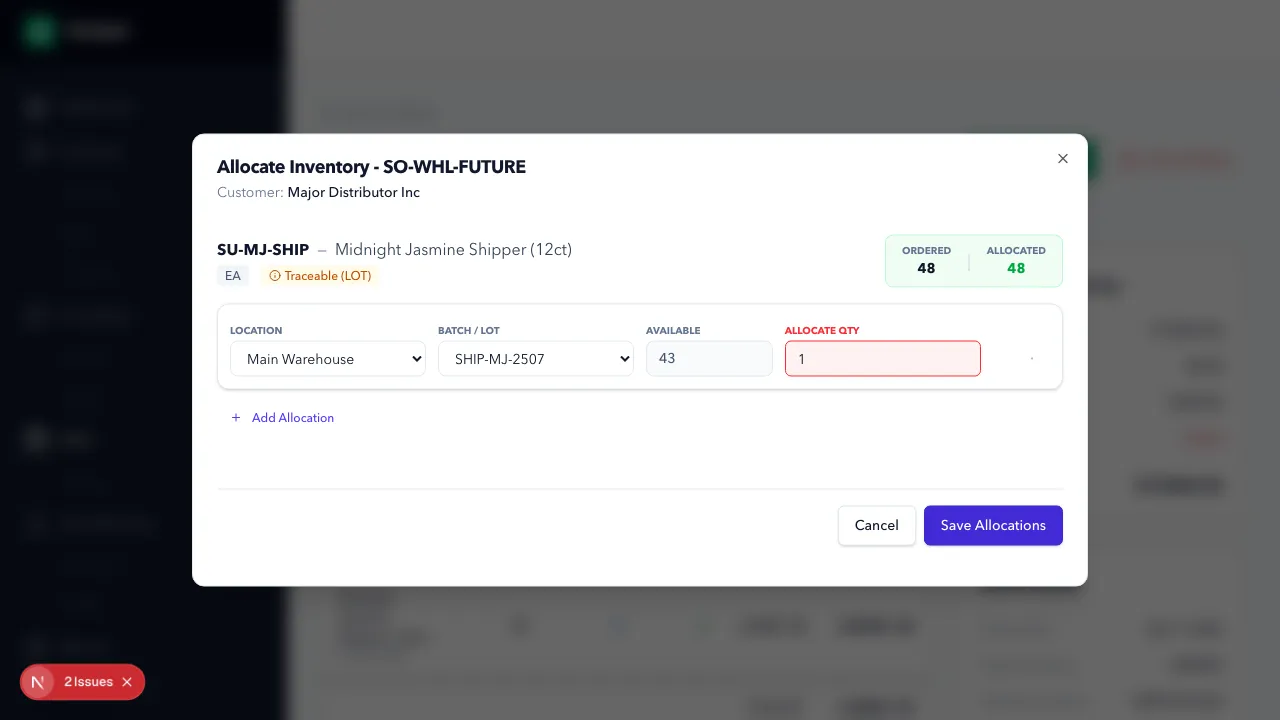
Runtime note: allocation quantity in the capture is intentionally kept within available stock.
Expected Result in Formul
Section titled “Expected Result in Formul”- Order exists with status
CREATEDorALLOCATED. - Allocation reduces
AvailablewhileOn Handremains unchanged until shipment.
Why Sales Order States Matter
Section titled “Why Sales Order States Matter”CREATEDcaptures demand without reserving inventory yet.ALLOCATEDprotects stock for this customer and prevents over-commitment to another order.- If you skip allocation discipline, your available stock signal becomes unreliable and fulfillment misses increase.
Sales Order Status to Ledger Impact (Creation + Allocation)
Section titled “Sales Order Status to Ledger Impact (Creation + Allocation)”| Sales order status | What changes in inventory ledger |
|---|---|
CREATED | No ledger entry yet; demand exists but nothing is reserved |
ALLOCATED | ALLOCATION entries are posted; available stock decreases while physical on-hand does not |
CANCELLED (before fulfillment) | REVERSAL entries are posted for active allocations; reservation is released |
If Something Looks Wrong
Section titled “If Something Looks Wrong”- If allocation fails, confirm enough available stock by location.
- If allocation quantity exceeds available stock, Formul blocks the save.
- If order cannot be edited/cancelled, verify current status.
Next Step
Section titled “Next Step”Ship the order in Fulfillment and Shipping.