Fulfillment and Shipping
Complete shipment in Formul so order state and inventory balances stay accurate.
Before You Start
Section titled “Before You Start”- Sales order is in
CREATEDorALLOCATEDstatus. - Every line is fully allocated (
Allocated=Ordered) before fulfillment can succeed. - Items are physically picked and packed.
-
Open the target sales order.
-
Open Allocate Inventory and make sure each line reaches full allocation (
Allocated=Ordered).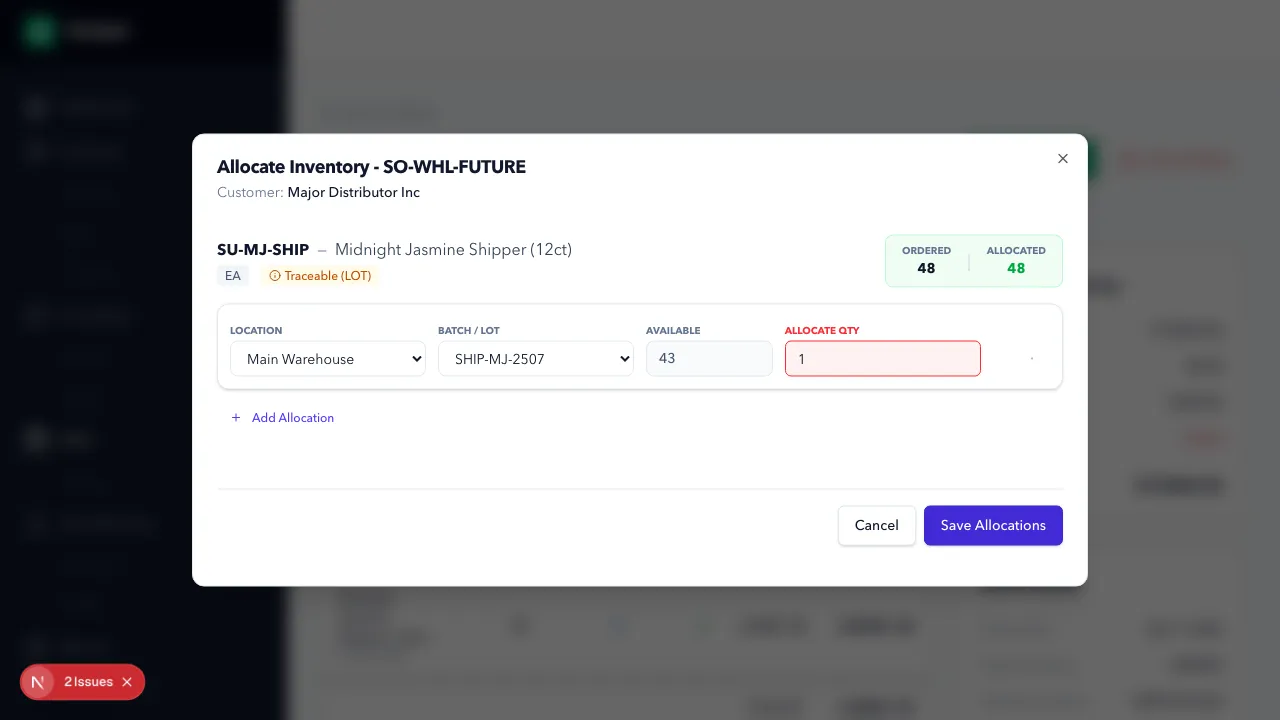
-
Click Fulfill Order.
-
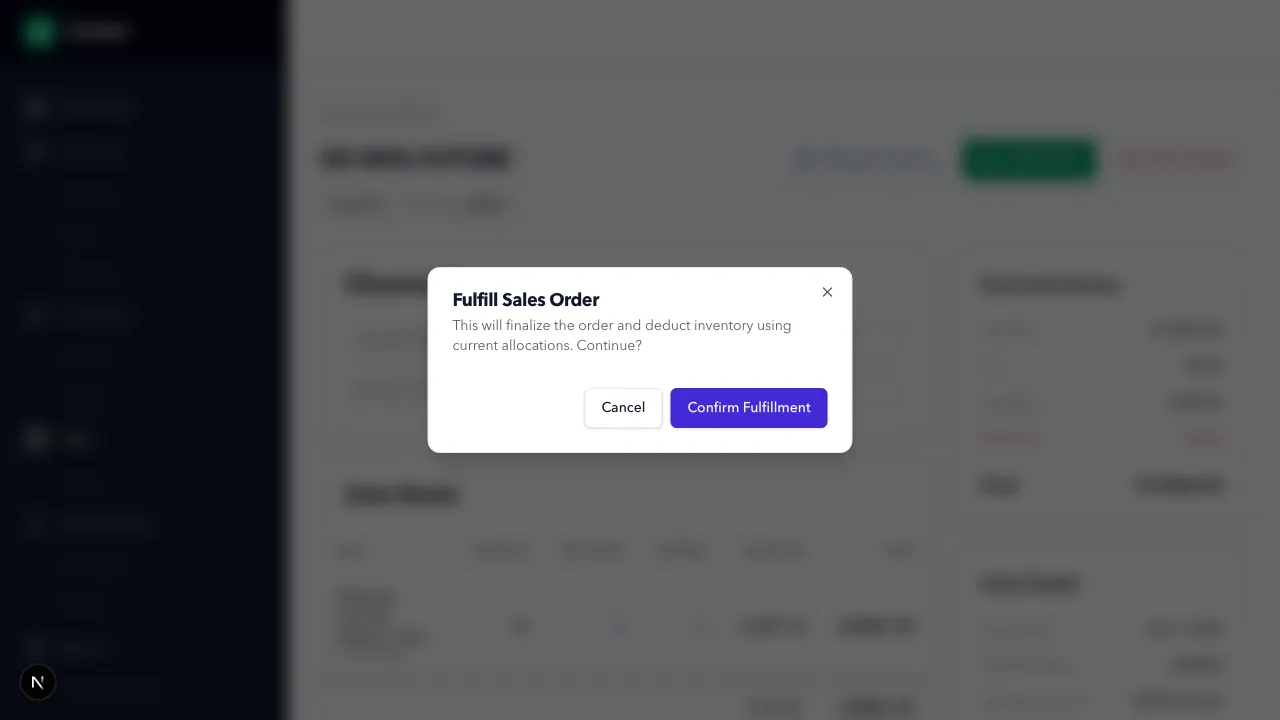
Review the confirmation dialog and submit.
-
Verify the order status updates to
FULFILLEDand no error toast appears.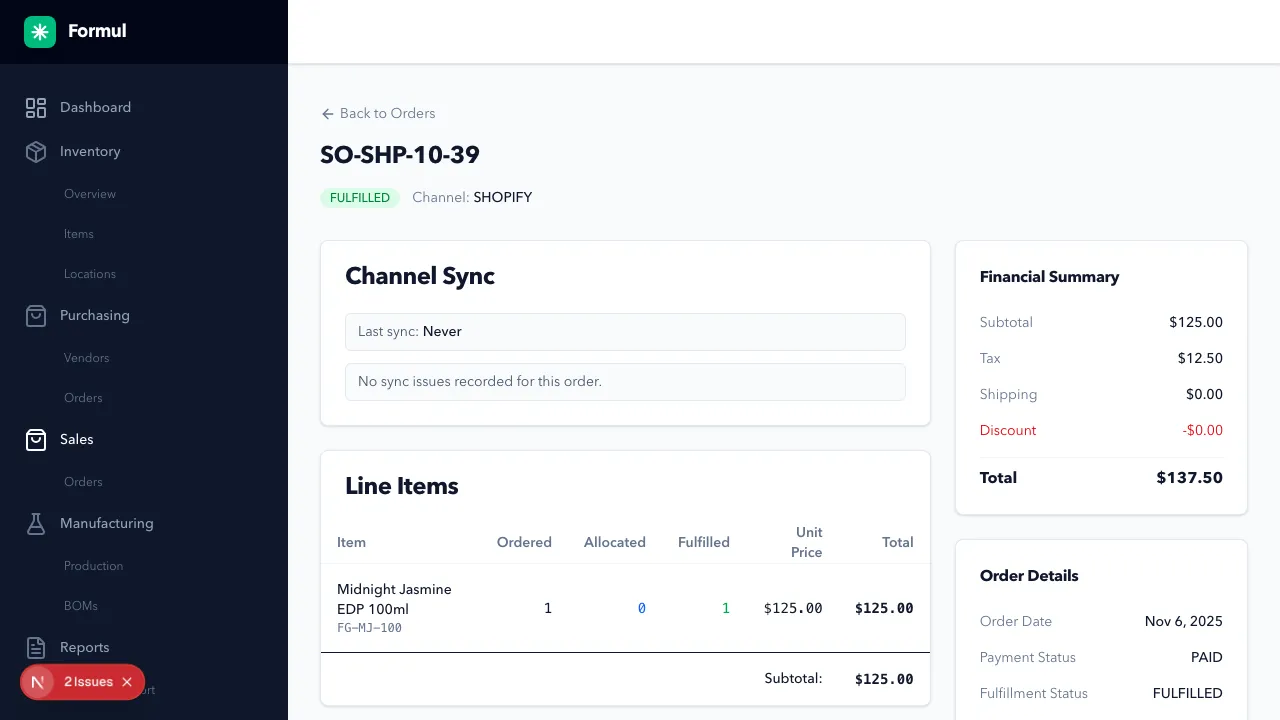
Expected Result in Formul
Section titled “Expected Result in Formul”- Order status moves to
FULFILLED. - Inventory posts shipment deduction.
- Allocation for shipped lines is released through fulfillment processing.
Why Fulfillment Timing Matters
Section titled “Why Fulfillment Timing Matters”- Fulfillment is the moment inventory leaves the business, so posting it late creates false on-hand confidence.
- Posting too early can cause stockouts in internal operations if items are still physically present.
- Accurate fulfillment timestamps improve margin analysis and traceability timelines.
Sales Order Status to Ledger Impact (Fulfillment)
Section titled “Sales Order Status to Ledger Impact (Fulfillment)”| Sales order status | Ledger behavior in Formul |
|---|---|
ALLOCATED (before ship) | Stock is reserved using ALLOCATION entries only |
FULFILLED | Formul first reverses active allocation (REVERSAL), then posts shipped quantity (SHIPMENT) which reduces physical on-hand |
Cancellation/reversal after FULFILLED | Not supported through normal order actions; fulfilled orders cannot be cancelled |
If Something Looks Wrong
Section titled “If Something Looks Wrong”- If fulfill button is unavailable, confirm the order is
CREATEDorALLOCATED(notFULFILLED/CANCELLED). - If fulfillment fails with
Line ... is not fully allocated, go back to allocation, allocate remaining quantity, and retry fulfillment. - If balances look incorrect, compare order lines, allocations, and shipment postings.
Next Step
Section titled “Next Step”Measure performance and trace batch history in Analyze Overview.