Understanding the Inventory Ledger
Use ledger history to audit inventory changes and troubleshoot discrepancies.
Before You Start
Section titled “Before You Start”- You have posted at least one inventory transaction.
- You know the item or batch you want to investigate.
-
Open Inventory and locate the item.
-
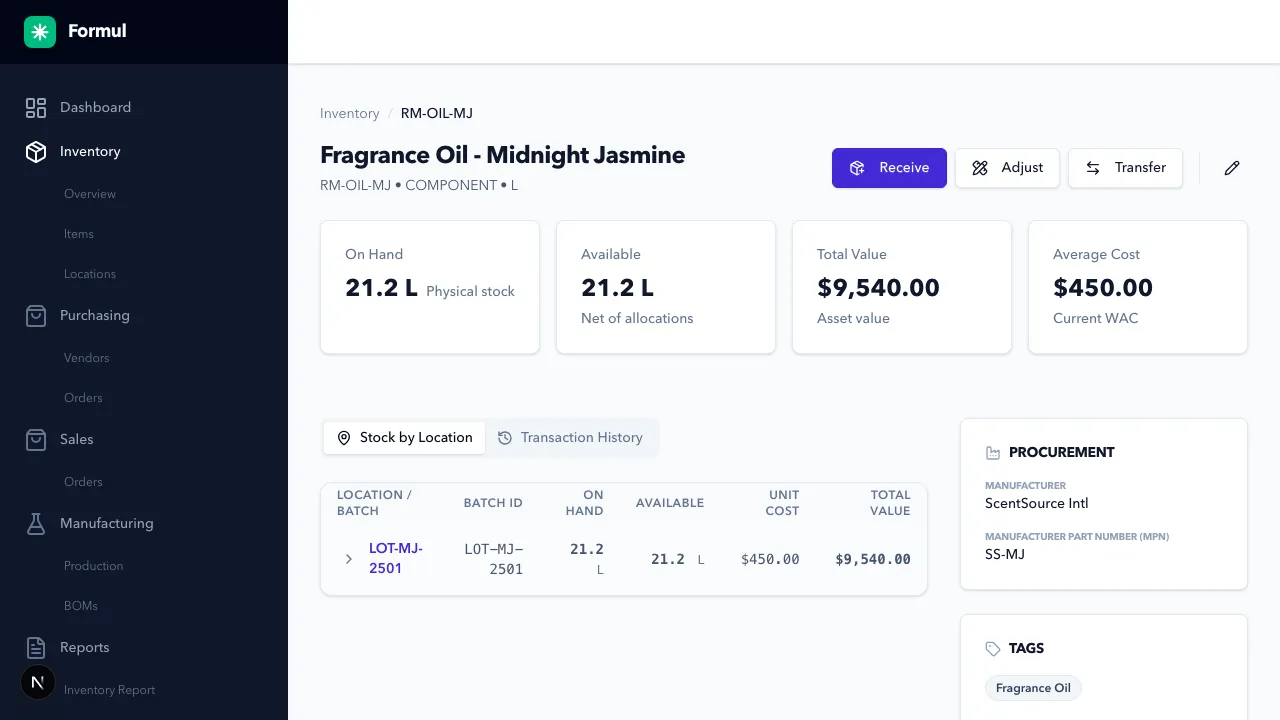
Open item details.
-
Review item-level transaction history and balances.
-
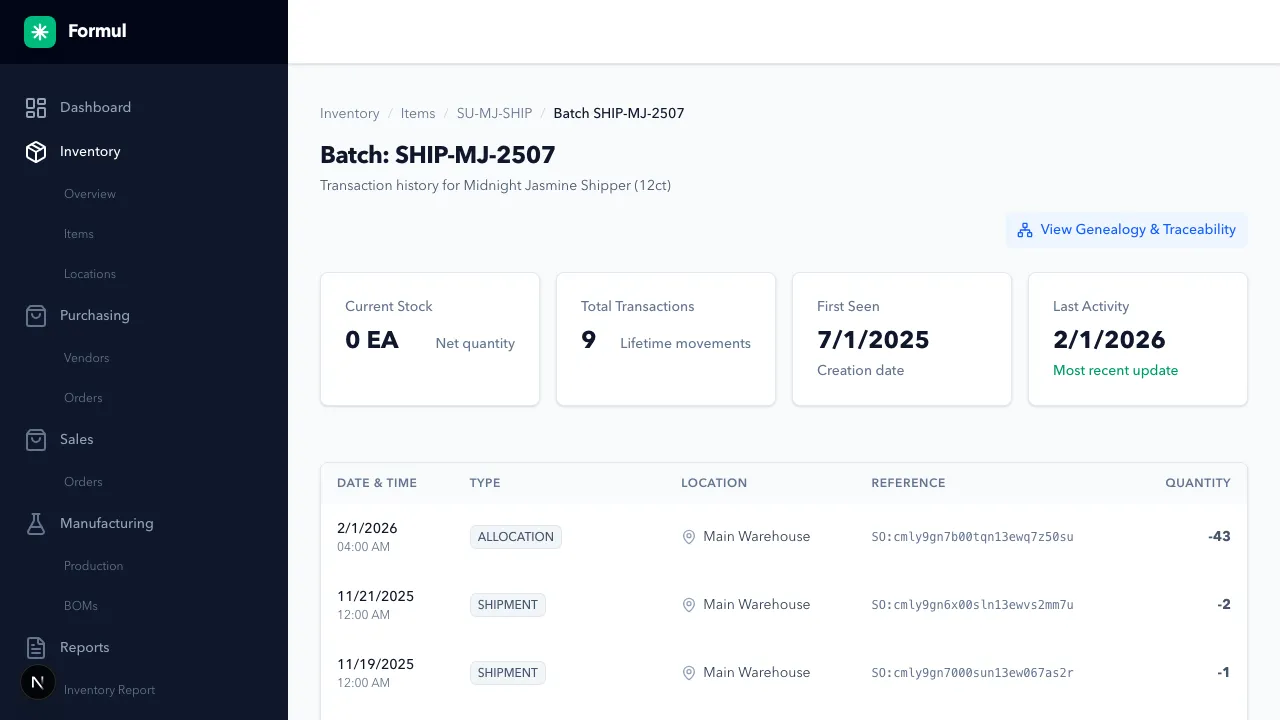
Open a batch record to inspect batch-specific lineage.
-
Confirm transaction type and quantity direction for each row.
Expected Result in Formul
Section titled “Expected Result in Formul”- You can trace quantity changes to transaction types such as
RECEIPT,ADJUSTMENT,TRANSFER_IN,TRANSFER_OUT,PRODUCTION_OUTPUT,PRODUCTION_CONSUMPTION,ALLOCATION, andSHIPMENT. - Batch-level history supports audit and traceability workflows.
What Each Transaction Type Means
Section titled “What Each Transaction Type Means”| Transaction Type | Plain-English Meaning | Typical Trigger | Quantity Direction |
|---|---|---|---|
RECEIPT | New stock was added into a location. | Receiving against a Purchase Order. | Increases stock (+) |
ADJUSTMENT | Stock was corrected after a count or loss/gain event. | Manual adjust action (damage, recount, shrink, found stock). | Can increase (+) or decrease (-) |
TRANSFER_OUT | Stock left the source location. | Transfer between two locations. | Decreases stock in source (-) |
TRANSFER_IN | Stock arrived at the destination location. | Transfer between two locations. | Increases stock in destination (+) |
PRODUCTION_CONSUMPTION | Components were consumed to make something. | Work Order completion posting component usage. | Decreases component stock (-) |
PRODUCTION_OUTPUT | Finished goods were created by production. | Work Order completion posting output. | Increases output item stock (+) |
ALLOCATION | Stock was reserved for a sales order, but not yet shipped. | Sales Order allocation. | Reduces available stock; on-hand is still physically present |
SHIPMENT | Reserved/available stock was shipped to a customer. | Sales Order fulfillment. | Decreases stock (-) |
If you are troubleshooting a mismatch, first check whether the change is a reservation (ALLOCATION) or a physical move (SHIPMENT, TRANSFER_*, RECEIPT, PRODUCTION_*, ADJUSTMENT).
Why Ledger Interpretation Matters
Section titled “Why Ledger Interpretation Matters”- The ledger is your operational and audit timeline for every stock change.
- Misreading reservation vs physical movement is a common cause of false discrepancy investigations.
- Correct interpretation shortens root-cause analysis and prevents unnecessary corrective transactions.
If Something Looks Wrong
Section titled “If Something Looks Wrong”- Validate whether the discrepancy is from allocation versus shipment.
- Check whether the transaction occurred in a different location branch.
- Reconcile with PO/WO/SO references tied to the entry.
Next Step
Section titled “Next Step”Create inbound supply using Buy Overview.