Receiving Inventory
Convert open purchase order quantities into on-hand inventory with complete ledger history.
Before You Start
Section titled “Before You Start”- Purchase order is
OPENorPARTIALLY_RECEIVED. - Receiving location exists.
- For lot-tracked items, you have a batch or lot code.
-
Open the target purchase order from Purchasing > Orders.
-
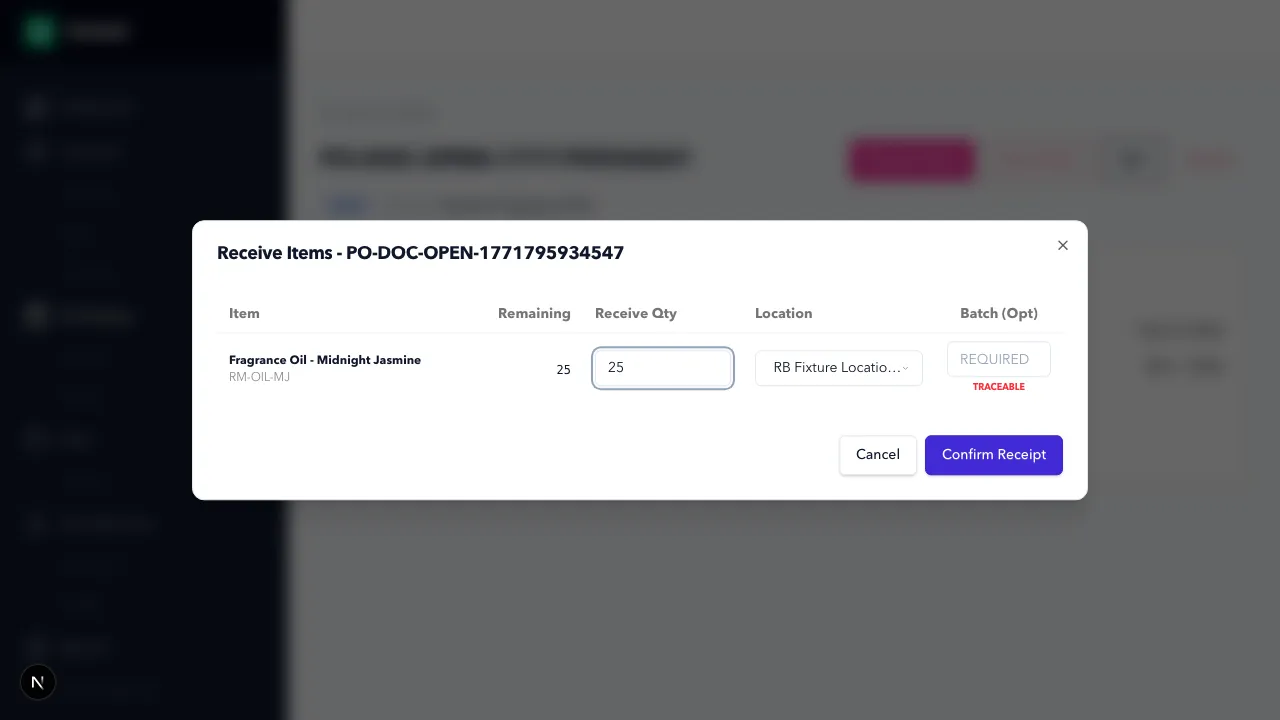
Click Receive Items.
-
Select the line item(s) being received.
-
Enter received quantity for each line.
-
Select receiving location.
-
Enter batch/lot ID when required.
-
Confirm receipt.
Expected Result in Formul
Section titled “Expected Result in Formul”- Inventory on-hand increases for received item/location.
- Ledger records a
RECEIPTtransaction. - Purchase order status updates to
PARTIALLY_RECEIVEDorCLOSED.
Why Receiving Decisions Matter
Section titled “Why Receiving Decisions Matter”- Quantity received affects both available stock and planning assumptions.
- Location determines where inventory can be picked, transferred, or allocated from.
- Batch/Lot ID enables recall and genealogy analysis later in traceability workflows.
- Unit price at receipt influences weighted-average cost and downstream margin visibility.
If Something Looks Wrong
Section titled “If Something Looks Wrong”- Confirm order status allows receiving.
- Confirm quantity does not exceed open amount.
- Confirm lot-tracked items include a valid batch/lot value.
Next Step
Section titled “Next Step”Use these materials in production from Make Overview, or review inventory effects in Manage Ledger.